Running ads, or want Google's own reporting alongside Zarla's? You can connect outside tracking tools to your site — no code needed.
Add a tracking tool
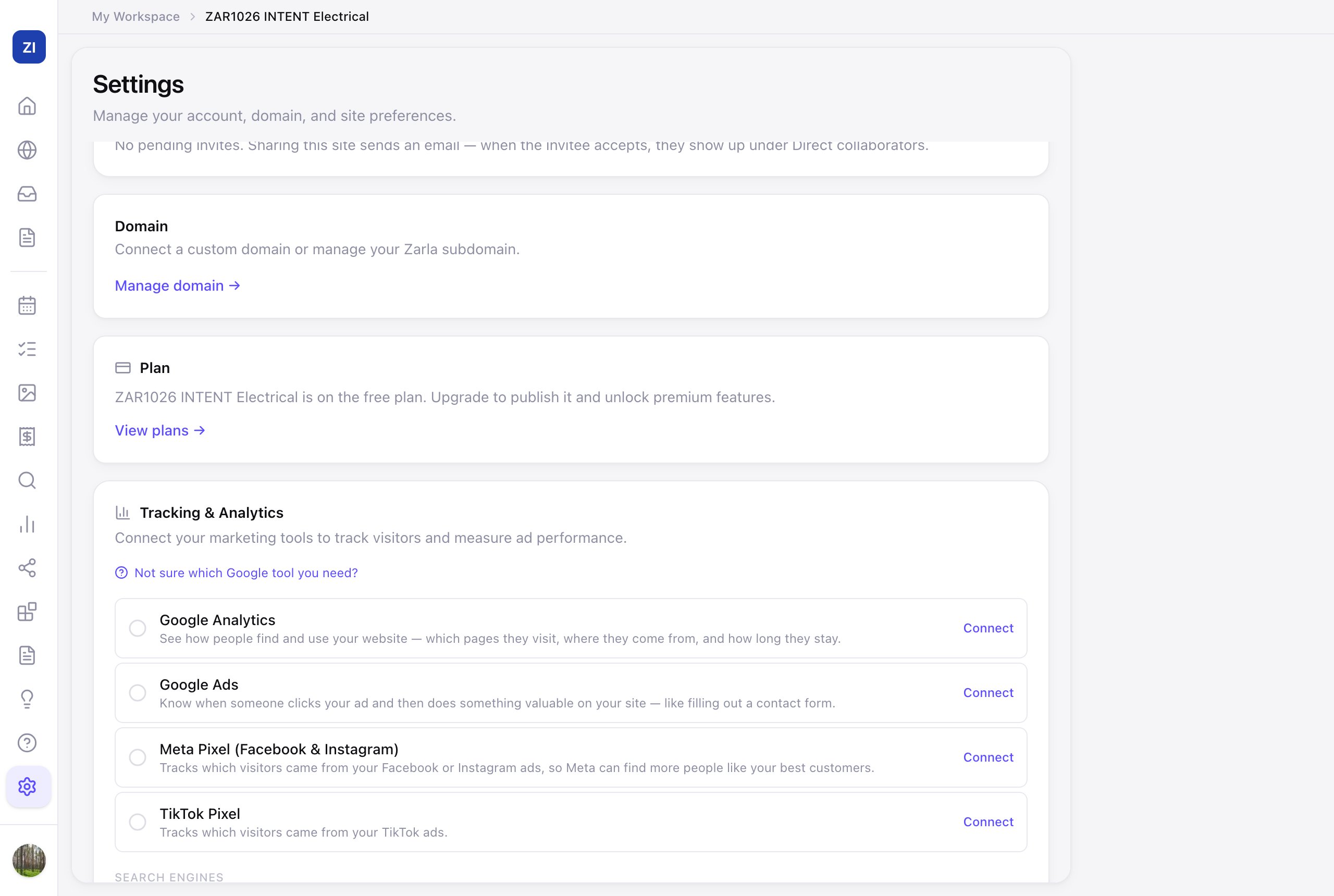
- In the sidebar, click Site settings and scroll to Tracking & Analytics.
- Pick the tool you're connecting:
- Google tools (Analytics, Ads, Tag Manager) — paste the ID from your Google account. Not sure which one you need? The "Not sure which Google tool you need?" helper in that section explains each in plain words.
- Meta Pixel — tracks which visitors came from your Facebook and Instagram ads.
- TikTok Pixel — tracks which visitors came from your TikTok ads.
- Search Engines — Google Search Console has no ID to paste. Set up in Get Found opens Get Found; go to Search Terms from there and connect it. Google asks you to approve Zarla first, and some sites need one extra step (see Connect Google Search Console). Bing Webmaster Tools takes its verification ID.
- Paste the ID and save. Zarla adds the code to every page of your published site — if your site is live, click Publish Changes (top right) to push it out.
Where do I find my ID?
Create the account with the tool first (for example at analytics.google.com), then copy its ID into Zarla. Each tool uses its own format, and Zarla checks the format when you save — so if you get an error, you've probably grabbed the wrong number.
| Tool | What Zarla asks for | Looks like | Where to find it |
|---|---|---|---|
| Google Analytics | Measurement ID | G-XXXXXXXXXX | Google Analytics: Admin (gear icon) → Data Streams → click your stream → copy the Measurement ID at the top. |
| Google Ads | Conversion ID | AW-XXXXXXXXXX | Google Ads: Goals → Conversions → click your conversion action → Tag setup → copy the Conversion ID. |
| Meta Pixel | Pixel ID | a long number, e.g. 123456789012345 | Meta Business Suite: Events Manager → Data Sources → select your pixel → the ID is the number at the top. |
| TikTok Pixel | Pixel ID | letters and numbers, e.g. CXXXXXXXXXXXXXXXXX | TikTok Ads Manager: Assets → Events → Web Events → copy your Pixel ID. |
| Google Tag Manager | Container ID | GTM-XXXXXX | Google Tag Manager: at the top of the dashboard, starting with GTM-. Your developer or agency will have this. |
| Bing Webmaster Tools | Verification Code | a long string of letters and numbers | Bing Webmaster Tools: add your site → choose "HTML Meta Tag" → copy just the content value. |
Google Ads is the one people most often get wrong. Google Ads shows you two different numbers, and Zarla needs the one tied to a conversion, not your account:
- Your account number, formatted like
123-456-7890, sits at the top right of Google Ads. This is not the one — Zarla will reject it. - Your Conversion ID starts with
AW-and lives inside a conversion action (Goals → Conversions → your conversion action → Tag setup). That's the one to paste.
If your ad manager also gave you a conversion label, put it in the optional "Conversion Label" field underneath — otherwise leave it blank.
Do I need this?
Not to start. Zarla's built-in Analytics covers visitors, sources, and page views out of the box. Add outside tracking when you run paid ads (so the ad platform can measure results) or when your marketer asks for it. The Advanced option in the same section covers custom snippets if a tool isn't listed.