Your site starts with the pages that fit your business — typically Home, About, and Contact, plus a page for each service. You can add more anytime.
Add a page
- In the sidebar, click Edit Site.
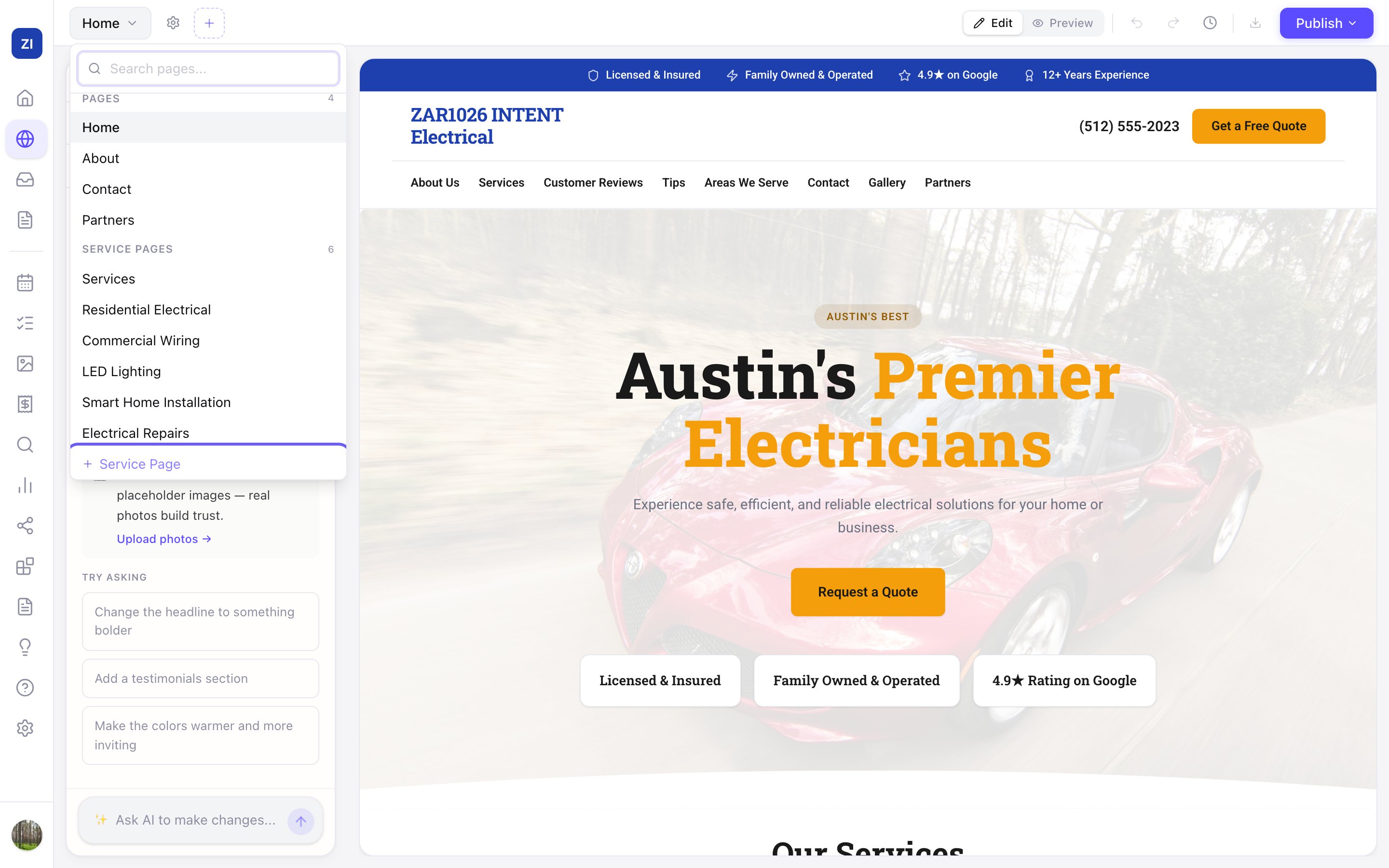
- Click the page name in the top-left corner (it shows the page you're on, like "Home"). This opens the page list.
- Each group in the list has its own add button — click the one for the kind of page you want:
- + Service Page — a dedicated page for one of your services. Great for showing up on Google when people search for that service.
- + Service Area — a page for a suburb or city you serve.
- + Blog Post — an article to share tips and news.
- + Landing Page — a standalone page for an ad campaign or special offer.
- The AI writes a first draft of the new page, and you edit it like any other page.
Ask the chat for new pages
You can also ask the editor chat, like "add a page for each of my services".
- One page: the chat writes it right away.
- Several pages at once: the chat lists the pages it will make, with a Create button and what they'll use in AI credits (about 10 a page). Nothing is built until you press it. The pages are then built one after another, and each one shows up in your page list when it's ready. The chat can set up 12 pages at a time, leaves out pages you already have, and tells you if your plan only has room for some of them. To rebuild a page you already have, ask for one page at a time — the chat keeps the current page until its new version is made.
Switch between pages
Use the same page list to jump between pages — or type in the Search pages... box if you have a lot of them.
Tips
- Zarla adds new pages to your site's menu automatically where it makes sense. Want the menu changed? Just ask the AI: "remove the Partners page from the menu."
- More service and area pages generally help you get found on Google — one page per service or suburb beats one page listing everything.