Already have customers in Xero, Google Contacts, Outlook or your phone? Bring them into Zarla in a couple of minutes. They land in Contacts, on the Everyone tab, so they're ready to pick when you send an invoice — no retyping.
Import your list
- Click Contacts in the sidebar (on a phone, it's in the bar at the bottom), open the Everyone tab, then click Import.
- Choose your CSV file — up to 4 MB and 5,000 people. Zarla matches the columns for you; change any that are wrong, or set a column to Don't import.
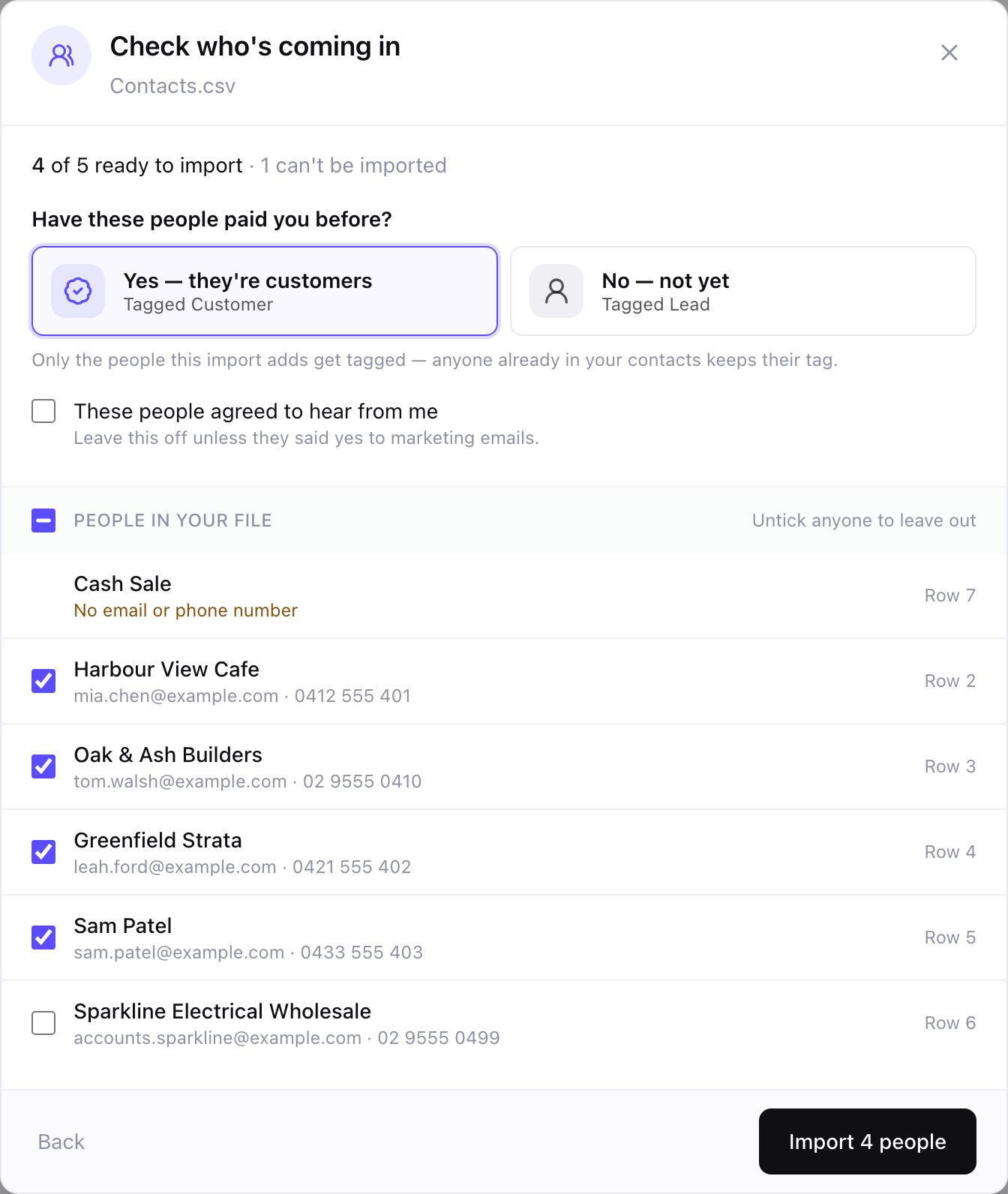
- Check who's coming in. Untick anyone you don't want to bring across.
- Answer Have these people paid you before? Yes tags the people you're adding as customers; No tags them as leads. Anyone already in your contacts keeps the tag they had.
- Leave These people agreed to hear from me off unless they said yes to marketing emails.
- Click Import. You'll see how many were added, how many were already in your contacts (they keep their tags), and a download of any rows that couldn't come in, with the reason next to each.
Zarla recognises people by their email address, and people with no email by their phone number. So anyone already in your contacts with the same email isn't added twice, and importing the same file again won't add anyone twice. Zarla only fills in details that were blank — it doesn't overwrite what you have. It never matches people by name, and never links someone who has an email by their phone number. If someone who's only on file by phone later arrives with an email, they show as a second contact. Two people with no email who share a phone number count as one. Imported people never appear in your Inbox or Pipeline; they live in Everyone.
Get the file out of your other app
Xero: in the Contacts menu, choose Customers (the contacts you've created a sales invoice or credit note for), then click the menu icon at the top right and choose Export. Xero downloads a CSV file. Choosing Customers leaves your suppliers out; if anyone else you don't want is in the list, untick them in the preview before you import.
Google Contacts: go to contacts.google.com, select the contacts you want (or all of them), click More actions → Export, choose Google CSV, then Export.
Outlook:
- New Outlook for Windows: open People, choose Export contacts on the ribbon, pick which contacts, then Export. The file lands in your Downloads folder.
- Outlook on the web or Outlook.com: open People, choose Manage contacts → Export contacts, pick which contacts, then Export.
- Classic Outlook for Windows: go to File → Open & Export → Import/Export → Export to a file → Comma Separated Values, then choose the Contacts folder under your account.
Your phone:
- Android phones usually keep contacts in your Google account — export them from Google Contacts (above).
- iPhone: if your contacts sync with iCloud (on the iPhone: Settings → your name → iCloud, with Contacts on), go to icloud.com/contacts on a computer, select the contacts (or Select All Contacts) and choose Export vCard. Zarla imports CSV files, so turn the .vcf file into a CSV with a vCard-to-CSV converter first.
A spreadsheet: any list works. In Excel or Google Sheets, save or download it as CSV, with columns such as Name, Email, Phone, Company and Address.
Undo an import
For 7 days after an import, Everyone shows it in a green strip above your list, with Undo import. Several recent imports share one strip — click Show to see each one with its own Undo import. Undo removes the people that import added. Anyone you've since added a note or a call to, or made an invoice or a document for, stays. Just editing someone's details won't keep them. Details the import filled in on people you already had stay too.