A section link sends a visitor straight to one part of a page — the booking form, your prices, the FAQ — instead of the top. People also call them anchor links, jump links or internal links. They're handy for a long home page, for a menu item like "Reviews" that scrolls down rather than opening a page, and for buttons like "Book now" that should land on the form. Every section of your site can have one, except the one at the very top of a page — its link is the page itself. You can set them up two ways: pick the section from a list, or ask the AI.
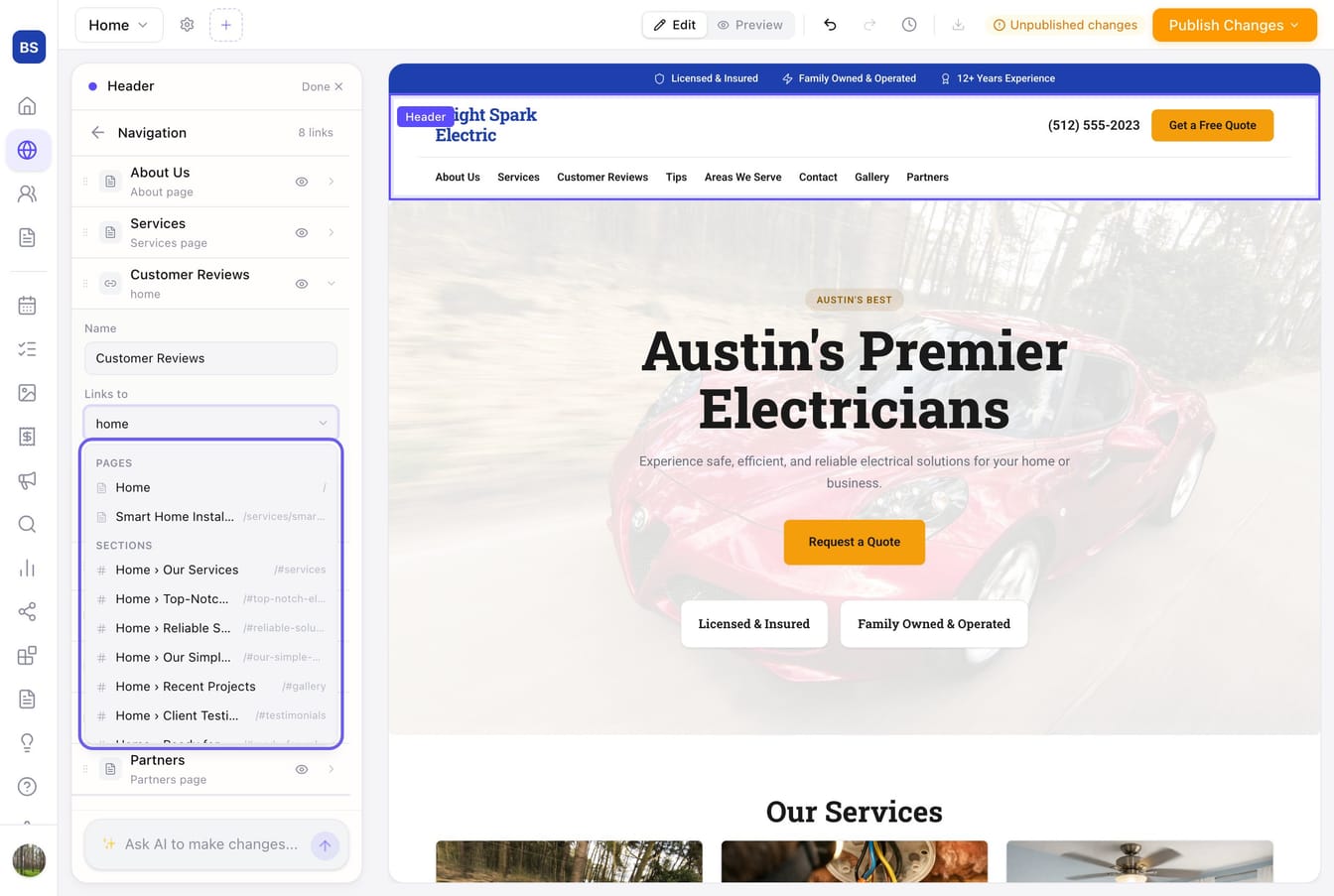
Point a menu link or a button at a section
- In the sidebar, click Edit Site.
- For a menu link, click the menu on your site (or Navigation in the panel) and open the link you want to change. For a button, click the section the button sits in and find the button's settings. For a footer link, click the footer.
- Click the Links to box (for a button, the link box under its text). The list shows your pages first, then Sections — the sections of every page, named in plain words: Home › Services, Home › FAQ, Contact › Booking form.
- Start typing to narrow the list — "faq", "book", "reviews" — and click the section you want.
That's it. The link now reads in words ("Home › FAQ"), and in the menu settings the small text under it says where it goes. Section links work from any page: a visitor on your About page who clicks a menu item pointing at Home › Reviews is taken to the home page and scrolled to the reviews.
If you'd rather type the address, you can: /#faq is a section on the home page, /contact#booking-form a section on the Contact page. If you type a name no section has, the box turns amber and says so — pick the section from the list instead; a section picked from the list always scrolls to the right place.
Get a section's own link — for an ad, an email or a QR code
Every section (other than the one at the top of a page) carries its own address you can use outside your site.
- Click Edit Site, then click the section.
- Near the bottom of its settings, just above Delete, find Section link. You'll see the address —
/#services, for example — with a Copy button beside it. - Click Copy to put the full web address on your clipboard, ready to paste into an ad, an email, a social post or a QR code generator.
The address uses your site's Zarla web address and works once you've published. If you've connected your own domain, replace the first part with your domain — the /#services part stays the same.
If a section has no name yet, you'll see + Add a section link instead. Click it and the section gets a name taken from its headline (or from what kind of section it is), which you can change.
Rename a section's link
The name in the Section link row is yours to edit — click it, type a new one (lowercase letters, numbers and hyphens, like spring-offer), and press Enter. Two things to know:
- The old name keeps working. A link you've already put in an ad or an email still scrolls to the right place, so renaming is safe.
- Each name is unique on its page. If another section on the same page already uses it, Zarla tells you and keeps the old name.
Ask the AI instead
Open the chat and describe the link:
- "Add a link in the menu called Reviews that scrolls to the testimonials"
- "Make the Book now button scroll to the booking form"
- "Add a footer link called FAQ that jumps to the FAQ section"
- "Make the Contact Us button on my About page go to the contact form on the home page"
The AI creates the link and names the section for you. Anything it sets up shows in the same Links to box and Section link row, so you can change it by hand later.
Then publish
Click Publish to put your changes live. Section links work on your published site exactly as they do in Preview — and they scroll so the section lands just below your menu bar, not hidden behind it.