Your Google Business Profile is the listing that appears on Google Maps and in the box beside search results — for local businesses it's often worth more than the website itself. Zarla walks you through getting it right.
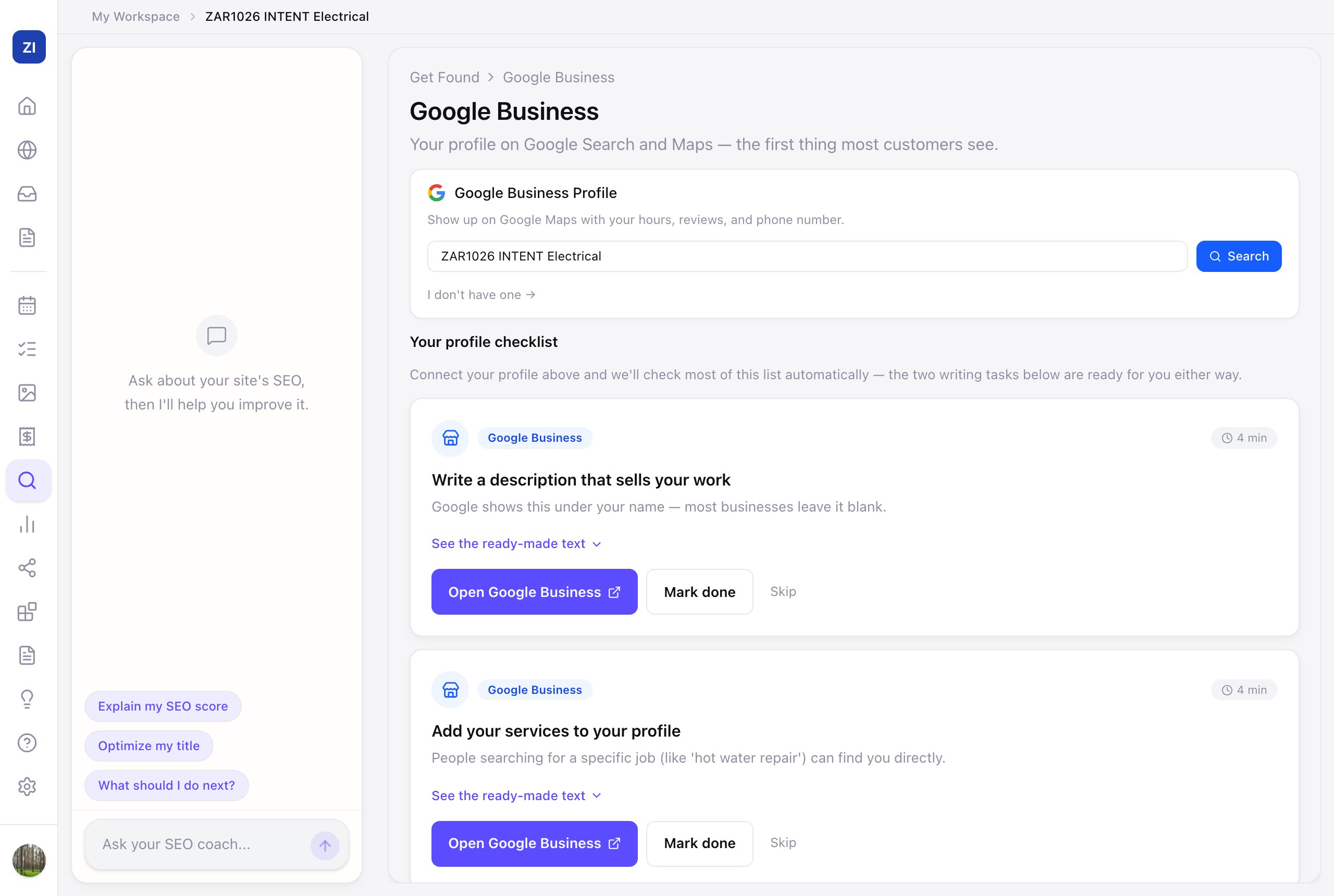
Connect your profile
- Open the Google Business page. On a computer, click Get Found in the sidebar, then Google Business. On a phone, tap More in the bottom menu bar, then Get Found, then Google Business. (The bottom menu bar isn't shown while you're editing your site. Tap the blue Zarla star at the top left to leave the editor first.)
- Search your business name and pick your listing. The listing that carries the same phone number as your site is marked "Matches your site" and comes first, so it's easy to tell look-alike names apart. If your listing isn't in the list, click Search again under it: the same search runs again, and a second try can find a listing the first one missed. Don't have one yet? Click "I don't have one →" and Zarla guides you through creating it.
There's no Google sign-in step — as the page says, "No Google login needed — just find your listing." You don't need to log in to Google or authorize anything to connect your Google Business Profile. (That's about Google Business only. Google Search Console, under Get Found → Search Terms, is a different Google tool and does ask you to sign in to Google: see Connect Google Search Console.)
Service-area businesses — you travel to customers and don't show a public address on Google — appear in the results with "Service area business" where the address would normally be. That's expected; connecting works the same way.
Seeing "No businesses found"? First, click Search once more: Google doesn't return every listing on every search, and a second try can find it. Check you're searching the exact business name as it appears on Google, and that your listing shows on Google Maps. If your listing is on Google Maps but the search here keeps missing it, contact us and we'll connect it for you.
Work the checklist
Once connected, Your profile checklist shows exactly what to improve, one card at a time — for example:
- Write a description that sells your work — click See the ready-made text and Zarla drafts it for you; paste it in via Open Google Business.
- Add your services to your profile
- Add a second business category
- Post to your Google profile regularly
Mark each card Mark done as you go (or Skip what doesn't apply). The checklist feeds your overall Get Found score.
Your rating on your website
Once connected, Zarla copies your Google rating and review count from your listing into your site's trust bar (the slim strip of badges at the top of every page), if your site has one. Your rating can also show in your hero (the big top section), depending on its design, and in your reviews section when it shows your Google reviews. They show on your live site once you publish. To hide the rating in the trust bar, click the trust bar in the editor and use the eye on the Google rating row (your listing stays connected), or just ask the chat: "hide the stars" or "show my Google rating". That switch covers the trust bar only.
When your rating and reviews update
Your site keeps its own copy of your rating, review count and reviews, so a new review on Google doesn't change them by itself. They change only when Zarla syncs with your listing, which happens:
- when you connect your listing,
- when you click Sync Now, and
- each time your site is published, if the last sync was more than 30 days ago.
To update now, click Sync Now under your listing on the Google Business page. (Synced next to it shows when the last sync was.) The sync saves to your draft, so publish again to put it on your live site: open Edit Site and click Publish Changes at the top right (Publish on a phone), then Publish Changes in the menu. If the editor is already open in another tab, reload it first. Already in the editor? Click your reviews section (on a phone, tap it, then Edit). If it shows your Google reviews, its Google reviews row has its own Sync Now, which updates the editor straight away.
When you open the Reviews page, Zarla can update your rating and review count from Google there, on the Google Business page and in the editor's Google reviews row, but not on your site: its rating and count change only when Zarla syncs.
Each sync brings in your current rating and review count. For the reviews themselves, Google shares only up to five, the ones it picks as most relevant, and Zarla shows the written ones rated 4★ and up. So a new review can raise your count without appearing on your site. Picked your listing while creating your site? Your reviews come in with your first Sync Now.
A map that shows your listing is the exception: it's Google's own map, so its rating is always current.
Added to the site as staff? Only owners and admins can sync and publish. Ask the site's owner or an admin to do it.
Why it matters
When someone nearby searches "electrician near me", Google mostly decides who appears in the map box from Business Profiles — completeness, reviews, and activity. A finished profile plus steady reviews is the strongest local-visibility combination there is.