Every quote and invoice you send already wears your brand — the logo, colours and fonts from your website — in a layout designed to look like it came from a studio. If you'd like it a little different, one screen sets it: no templates to download, no Word documents to edit.
Find it
- Click Get Paid in the sidebar, then Quotes or Invoices.
- Click the Design tab at the end of the tab row. It opens Quote & invoice design.
You set the design once. The same design is used for your quotes and your invoices — on your customer's phone, in the email they get and in the PDF.
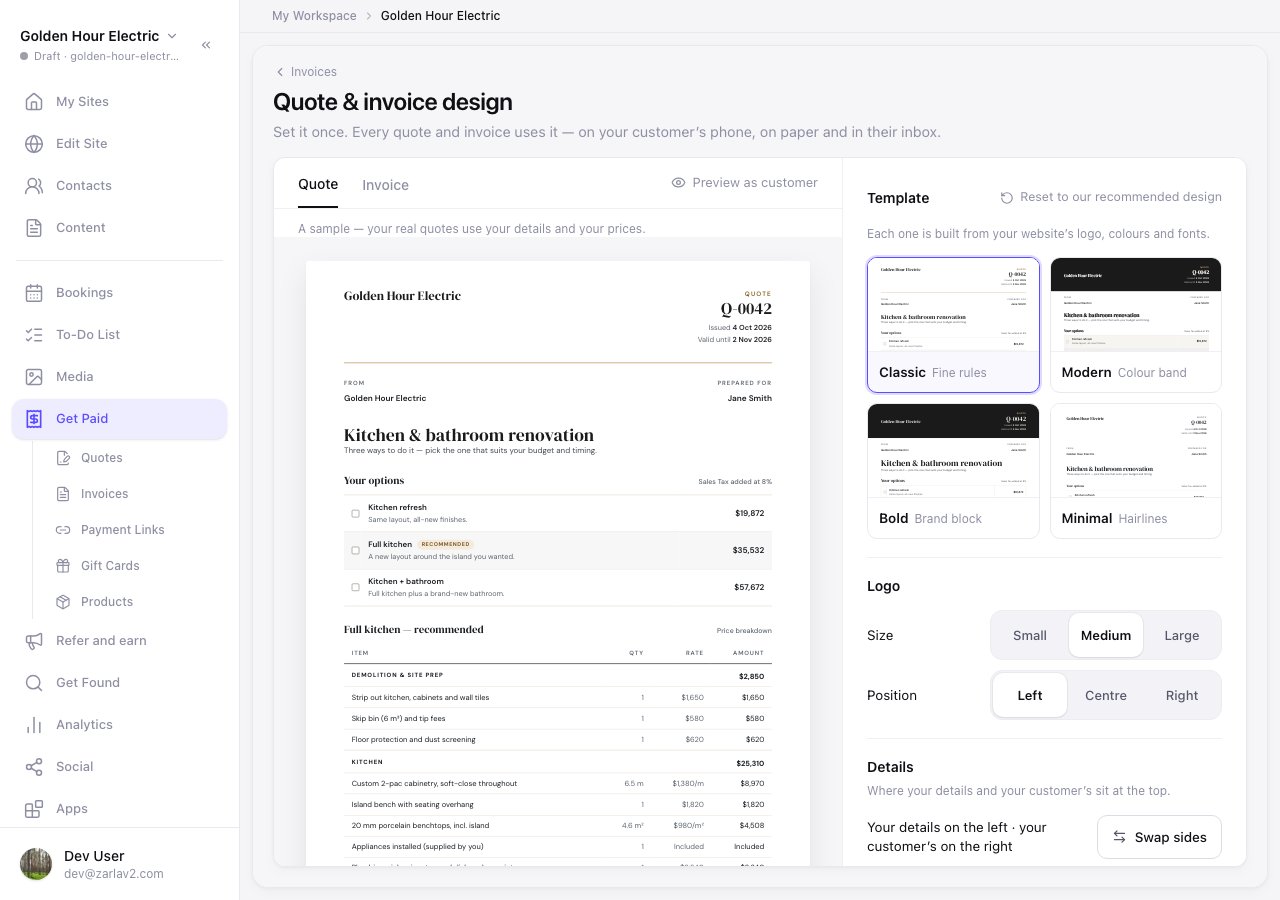
What you're looking at
The left side is a sample quote (or invoice — use the Quote / Invoice tabs to switch) drawn with your real business name, logo and contact details, so you can see exactly what each control does. The job, the customer and the prices are made up; your real quotes use your details and your prices.
Every edit shows in the sample straight away and saves on its own — you'll see Saved at the top right. There's no Save button to find.
Preview as customer opens the sample full-size, the way your customer gets it: as a phone page, or as the PDF.
The controls
- Template — four looks, each built from your website's logo, colours and fonts: Classic (fine rules), Modern (a colour band across the top), Bold (a brand block) and Minimal (hairlines). Each tile shows your own sample in that style.
- Logo — Size (Small, Medium, Large) and Position (Left, Centre, Right). In emails the logo shows up to the size you chose — some email apps ignore sizing and show it their own way.
- Details — where your details and your customer's sit at the top. Tap Swap sides to switch them; they always sit opposite each other.
- Text — the heading font (your website's fonts are on the list; picking one here only affects your quotes and invoices, never your website), the text size (Smaller, Standard, Larger) and whether headings are Regular or Bold.
- Accent colour — the colour used for headings, lines and the total. It starts as your website's colour. Pick one of the five swatches or tap + for your own. If a colour is too light to read on white paper, it's darkened a touch so the figures stay readable.
- Show on your documents — switch on or off your address, phone, email, website and tax number. The details themselves come from Invoices → Settings; this only decides which ones print. There's a Licence no. switch too — your licence number appears once you can enter one in Invoices → Settings (coming).
- Paper size — A4 or US Letter, for Download PDF and printing. Businesses in the United States and Canada start on US Letter; everyone else on A4.
- Terms and footer — your default terms (added to every new quote) and a one-line footer for the bottom of every document, like a thank-you or a licence line.
Download PDF
Your customer's quote page and invoice page have a Download PDF button, and so do the owner's views in Zarla. The PDF uses the same design and the paper size you chose. A long quote flows across pages with the table heading repeated, and a quote that's still open ends with a sign-and-accept section right after the terms — the options as tick boxes, lines for name, signature and date, and a QR code that opens the online version.
Start again
Want the original look back? Reset to our recommended design (beside Template) puts everything back to the design we built from your website — template, logo, sides, text, colour, what shows, paper size and the footer line. Your default terms stay as they are.